This article covers how to make a code expire once used. Use the instructions in Basic Promotion Setup as a basis, with the modifications below.
Step 1: Enable
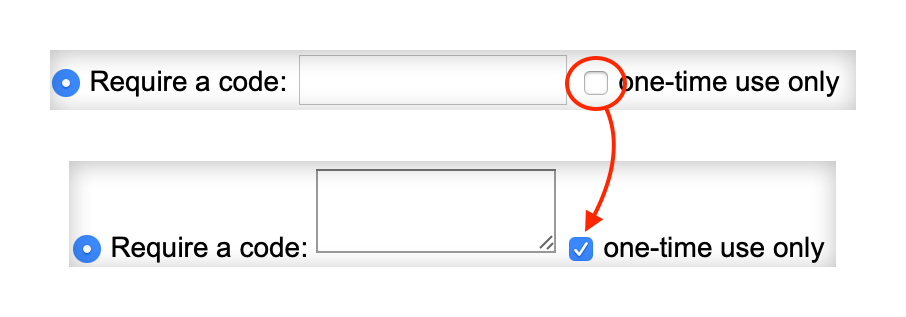
First, check the box labelled "one-time-use only." You will see the text field change to be expandable.
Step 2: Enter Code(s)
The expandable text field allows entering multiple codes at once, in batches. Separate each code on a new line, as shown below. You can also copy and paste them from a spreadsheet.

Tips:
- Codes must be 15 characters or less.
- Test a single code first, to make sure of the settings. Once created, codes cannot be adjusted in batches, so it's better to plan ahead.
- When you enter the real codes, include one or two extras for further testing.
Step 3: Finish
Make sure to finish the instructions in Basic Promotion Setup. Once you click Add, the one-time-use codes will appear in the Current Promotions section.
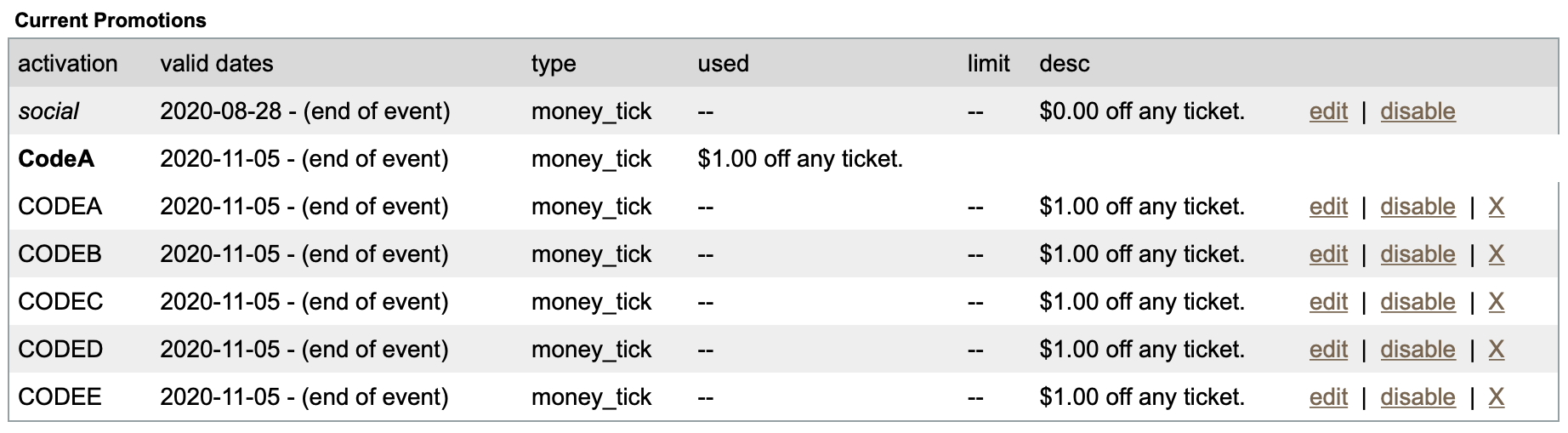
Please note: Once created, codes cannot be adjusted in batches! It's much better to test a single code first, so that you don't make mistakes when you add the whole batch.
You can see data about discounted orders using the Discounts Report, the "coupon" filter on the Order Search page, and the coupon_code column in order exports.
(Note: These results include orders where the customer entered a code but didn't use it, and they include any non-discounted tickets on matching orders.)