Begin by following the steps in Basic Promotion Setup.
If you selected the "Ticket Password" option for Promotion Type, then under Rules you will select one or more ticket types that will be protected.
Warning: For each ticket type, if all passwords that are protecting it expire because of the "valid dates" option, it will revert to being available for customers like a normal ticket type.
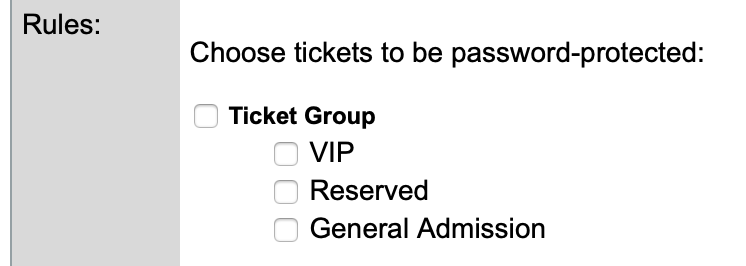
Here are some helpful tips:
- All tickets can be password-protected. The customer order form will show group headings, but protected tickets will not appear unless customers enter a valid password.
- Passwords and coupon codes are entered in the same field. A ticket password and coupon code can be used on the same order.
- Orders placed with a password can be found using the 'Ticket Password' filter on the order page. This includes all orders where the customer entered the password, even if they didn't actually order a protected ticket.
- Password-Protected Tickets can be set up on a master events. If you want the tickets password protected on Sub Event you must set up the promotion on each of those as well.
Once finished, click Add.
Note: Please test the promotion using the customer order form, and try all possible scenarios. Make sure that you proceed at least to Payment, to confirm that the discount is working as expected.
Passwords used in customer orders can be matched using the "ticket password" filter on the Order Search page. They are also listed in the order export.
(Note: These appear in results if customers merely enter them, even without buying a protected ticket.)